Introduction to ShipSure Procurement

The Marine Procurement Guide has information for users about the best way to input and extract information from the application.
The Procurement application connects the ship and shore based operations enabling requisition of goods and services.
Through the 'Automated' interfaces with suppliers, (B2B), this enables review of the best option and efficient and effective delivery to the ship at an appropriate port.
The ShipSure Procurement modules are:
- Purchase Orders provides a streamlined process for the vessel and office to create purchase requisitions, freight orders and manage those orders through enquiry to receipt.
- Invoicing provides a streamlined process for creating Invoices & Credit Notes and also comparing invoices received from suppliers to the purchase orders sent to the suppliers.
- Authorisation Levels provides multiple levels of authorisation on spend to budget.
- Position List gives a view of the current and planned destinations for vessels and any agents registered near the destination ports via the use of an interactive map. Direct access to the Position list can also assist the user with setting up the delivering of orders.
ShipSure Procurement Benefits
-
A streamlined process for managing orders through enquiry to invoice following receipt.
-
Purchasing oversight of the status and control of goods and services for the vessels.
-
Real time view of the actual spend against the vessel budget.
Process Responsibilities
-
Responsible for arranging the purchase, but can also create requisitions, run local reports and check invoice accruals and release.
-
Buyers cannot authorise any quotes or invoices
-
Procurement Managers provide oversight and have access to some administration functions. They also authorise large orders.
-
Responsible for the vessel’s budget.
-
They can create, review and release a requisition for quotation, authorise at first level, run local reports and approve invoices which differ from accruals.
-
Fleet Managers provide oversight of Superintendents and authorise higher value purchases
-
Period End reporting to Customers
Accessing the Procurement Module
From the ShipSure menu a user can access and search
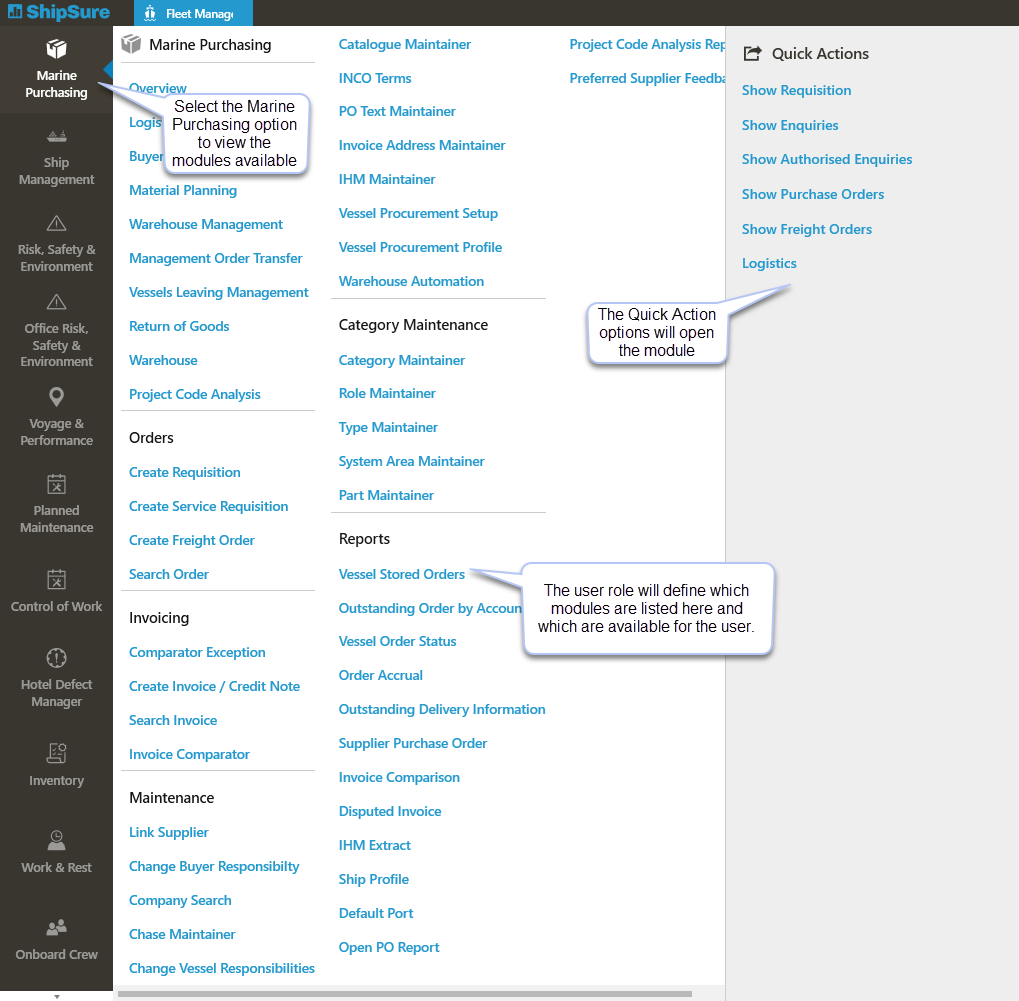
-
Purchasing Functions, Filters & Stage Tabs - gives access to select vessels, start the Purchasing process and all of its associated functionality.
-
Requisitions - from within the Purchasing screen Create, Copy, Split, Merge and Review requisitions.
-
Suppliers - attach suppliers to Enquiries, issue RFQ's to suppliers, enter and analyse quotes from suppliers.
-
Authorisation - there are several stages in the order process where authorisation is required i.e. Supplier quotes, Orders, Adjustments and Invoices.
-
Orders, Freight and Deliveries - issue orders to suppliers, create and manage freight orders, manage deliveries and adjust accruals.
-
Invoicing - create, edit and search for invoices and use the Comparator.
-
Reporting - various reports can be viewed or printed as required.
Other Modules associated with Procurement that are available directly via the application
The Position List can be viewed from the user Dashboard or accessed from the Purchasing Screen. It displays the current and planned destinations and any agents registered near the destination ports for a selected vessel via an interactive map.
This can assist the user when selecting suppliers and the arrange the delivering of orders.
For more information, see the Position List topic.
The ShipSure Comparator allows the user to compare and match the invoices received from suppliers with the purchase orders sent to suppliers.
The Comparator can also be used to authorise, process and deal with any discrepancies.
The application has also been amended to give a more complete view of all Purchasing invoices in the approval process associated to each vessel and where they currently sit in the process. The view can be filtered as required.
For more information, see the Comparator topic
Within ShipSure - the Ship Management Module enables the user to perform operational and technical functions involved in vessel operations
For more information on Vessel Details, Certificates etc., see the Ship Management topic.
-
The various home pages & dashboards will have a different look and feel dependant on the user profile
-
Below are examples of user Dashboards and what can be viewed
-
The Dashboard gives an overview per allocated vessel of all orders and current Status
-
Each number shown denotes the number or orders at the indicated stage for each ship.
-
If the number is in RED, this indicates there are one or more urgent entries (but not all of the entries).
-
If the number is in BLUE, this indicates that all entries are normal.
-
By clicking the number, the associated Purchase Orders will be displayed below the vessel listing
-
By clicking on the vessel name the user will go directly to the Requisition status and see the full list of orders for review.
-
-
Views can then be adjusted by using the Filter options to limit what you see by relevance
The Procurement dashboard for viewing Outstanding Orders, Orders Received and Invoices in the Comparator displays an individual vessel or Fleet details
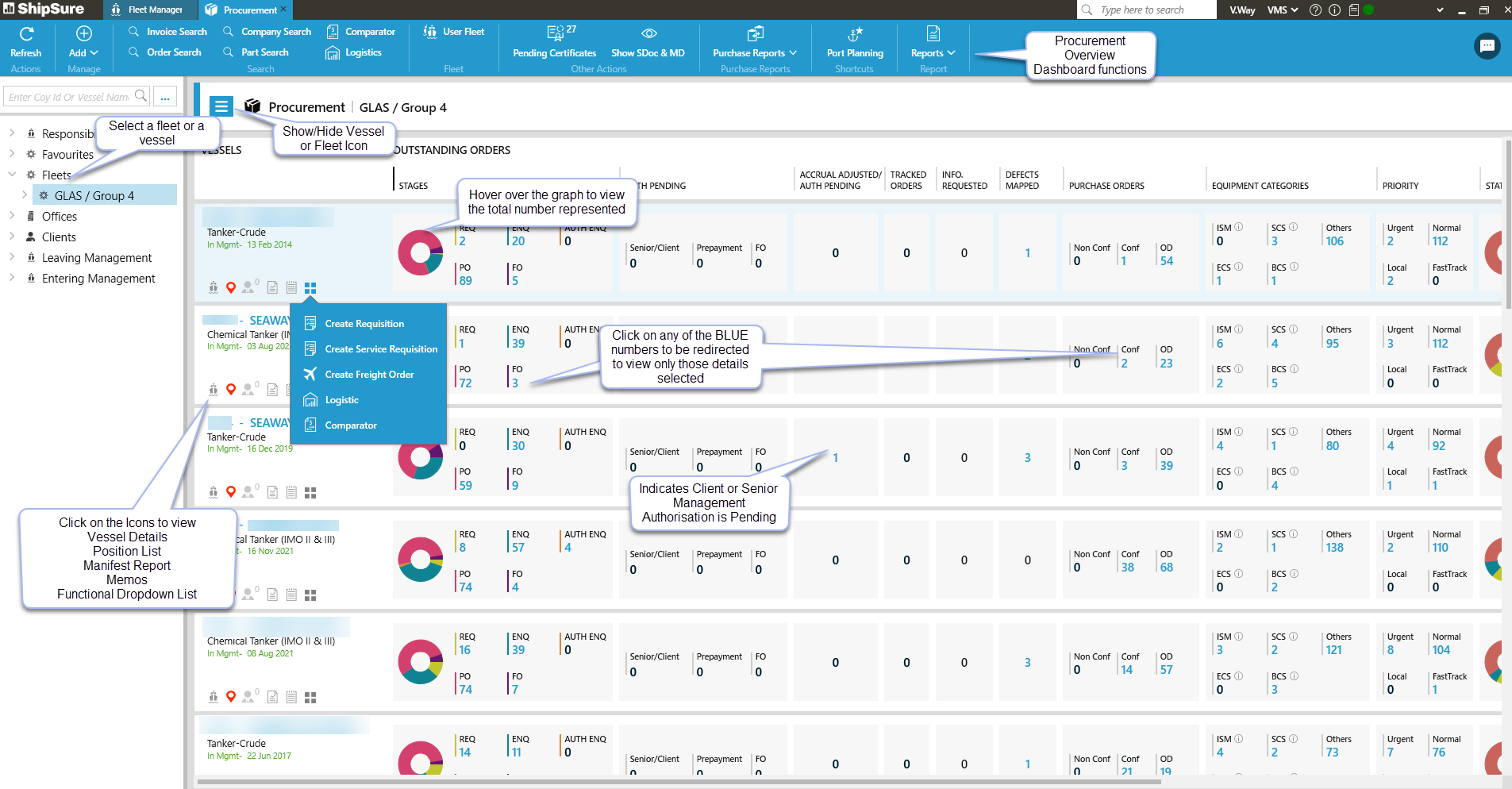
Procurement Dashboard displays Pending Senior and Client Authorisation along with the number of orders that require either senior management or client's approval
A Purchasing Manager has a summary overview of the Buyers Outstanding Orders and their statuses, Orders In Progress, Tracked Orders, Memos and the Position List
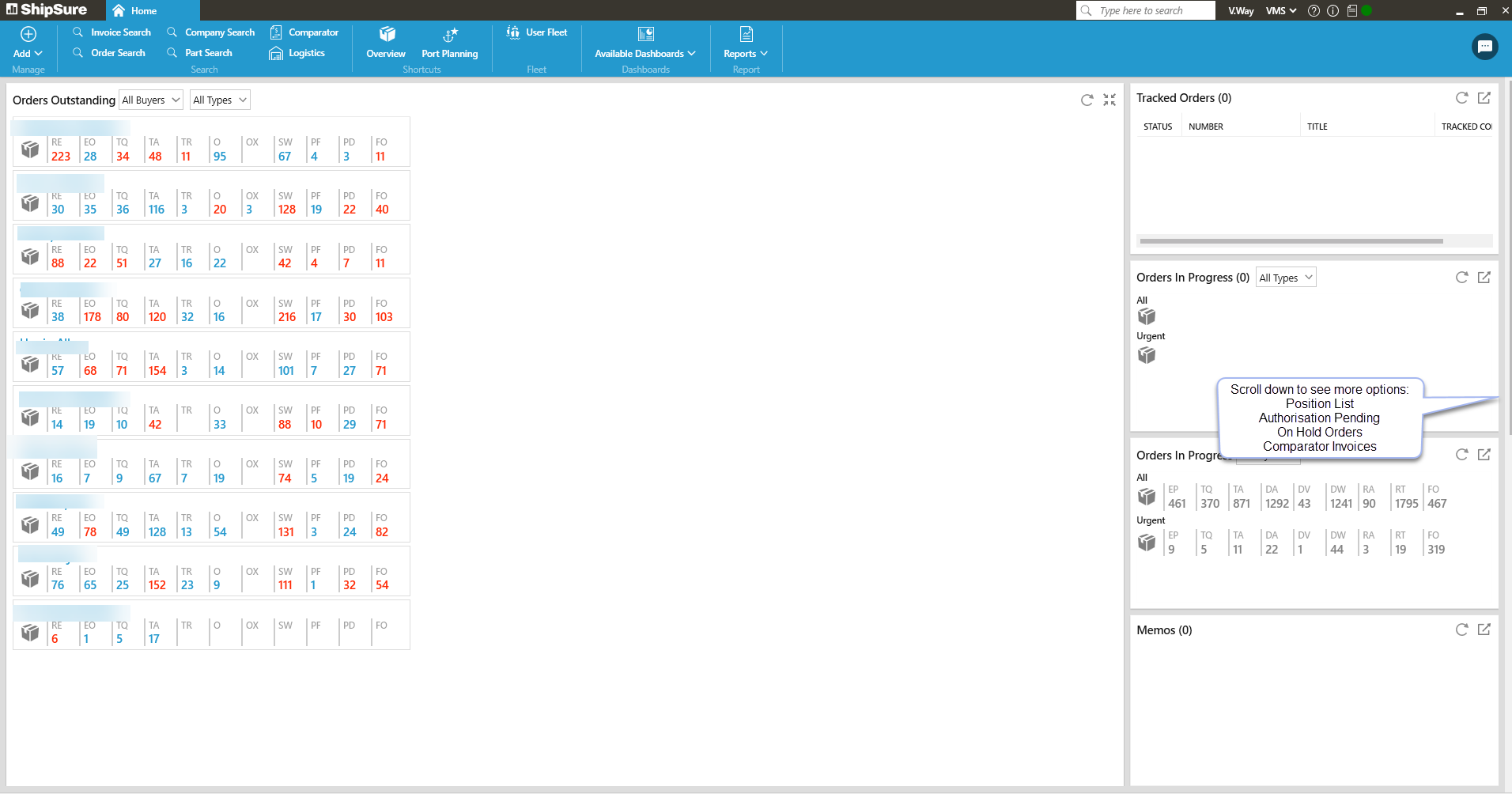
When a Vessel or a Fleet is selected the Procurement dashboard will then be displayed
A Buyer has a summary overview of the Outstanding Orders for the vessels assigned to them along with a view of their Tracked Orders, Memos and the Position List
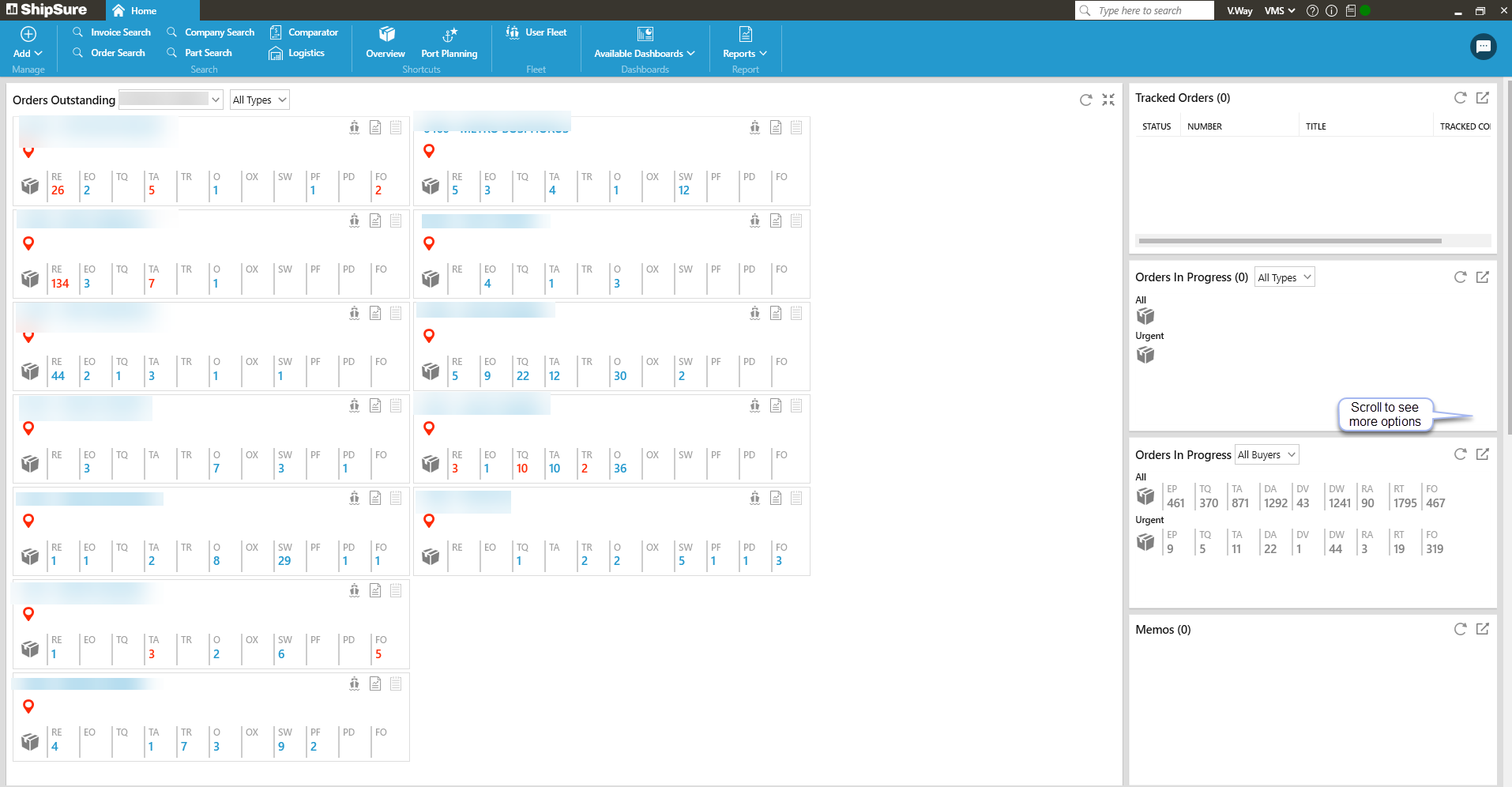
When a Vessel or a Fleet is selected the Procurement dashboard will then be displayed.